Early Access Feature
Updated Suggestions UI in Word
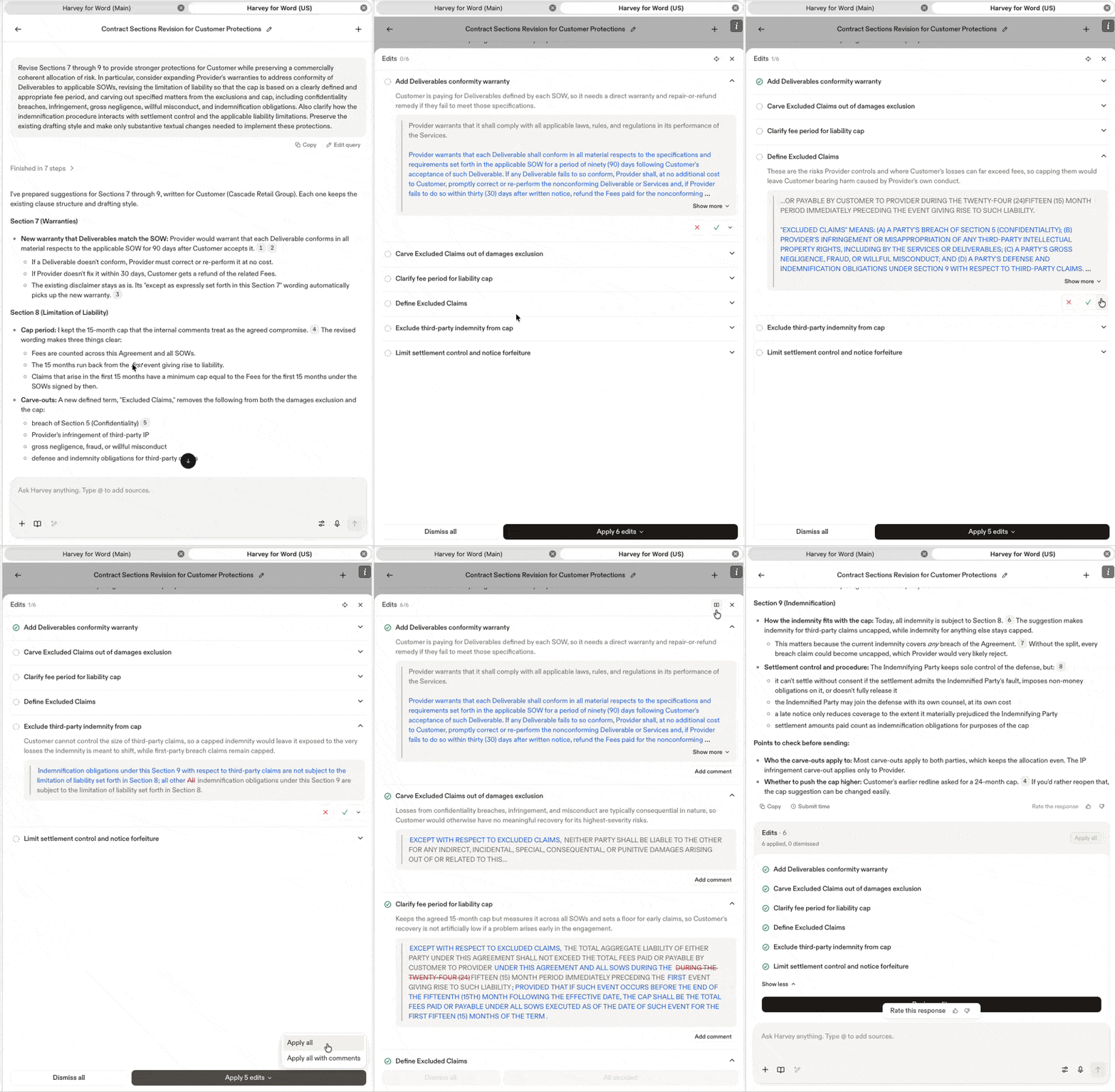
In the Harvey for Word add-in, scan Harvey's suggested edits in a compact list, then apply them all at once or review them one by one.
Interested in testing this feature?
Contact your Customer Success Manager for early access.
Important: This feature is rolling out in phases from October 21 through November 11, 2026. If you have questions about when this update will land in your workspace, contact your Customer Success Manager.
Overview
In the Harvey for Word add-in, your suggested changes now appear as a short list with a title for each edit, instead of a long stack of cards. From the list, you can review each suggestion one by one, or apply every edit in one step and review the result in your document.
This update only changes how Harvey’s suggestions are displayed. The type and quality of Harvey's suggestions stay the same, and every edit you apply goes into the document as a tracked change that you accept or reject in Word.
How to Use
- In the Harvey for Word add-in, ask Harvey for changes to your document, for example "Mark up this NDA for the receiving party."
- When Harvey has completed its suggestions, review the Edits card, which shows the number of suggested edits and a short title for each.
- Choose how to apply the edits:
- Select Apply all to apply every edit at once. To also add Harvey's reasoning as Word comments, select the drop-down menu next to Apply all and select Apply all with comments.
- Select Review edits to review each edit one by one.
When reviewing individual edits, select a suggestion’s title to expand it and see the change, Harvey's explanation for it, and any citations.
To apply or dismiss each edit:
- Select the
 icon to apply the change. Or, select the drop-down menu and choose Apply with comments to add Harvey’s reasoning as a Word comment.
 - Select the
 icon to dismiss the change.
 - To bring back a dismissed edit, expand it and select Restore.
After you’ve applied or dismissed your edits, go to Word’s Review tab to accept or reject the tracked changes.